
Your Business Email Got Hacked — Here's What to Do Right Now
Step-by-step guide for business owners when a company email account is compromised. What to do first, how to contain the damage, and how to prevent it from happening again.

You just found out one of your company email accounts was compromised. Maybe a client called to ask about a weird email they got from your address. Maybe you noticed sent messages you didn't write. Maybe your IT provider flagged a suspicious login from another country.
Whatever tipped you off — don't panic, but move fast. The next few hours matter.
Here's exactly what to do, step by step.
Step 1: Change the Password Immediately
This is the single most important thing you can do right now. Change the password for the compromised account to something long and unique — at least 16 characters, mixing letters, numbers, and symbols.
If you use Microsoft 365, you can reset the password from the Entra ID user management page — select the compromised user and reset their password. If you're not sure how, your IT provider can do it in minutes.
Important: If the same password was used on any other account (personal email, banking, software logins), change those too. Attackers try stolen credentials on every service they can think of.
Step 2: End All Active Sessions
Changing the password stops new logins, but the attacker might still have an active session open. In Microsoft 365, an admin can revoke all active sessions to force the attacker out immediately.
In the Microsoft 365 admin center:
- Go to Users → Active users
- Select the compromised user
- Click Revoke Sessions
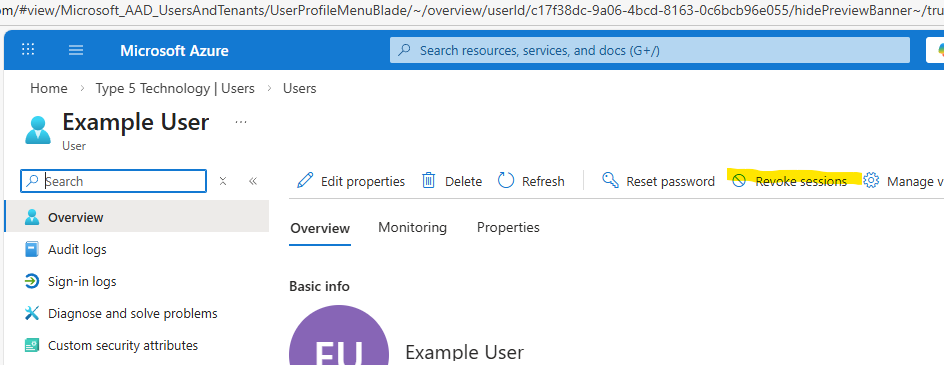
This logs the attacker out everywhere — Outlook, Teams, mobile apps, browser sessions.
Step 3: Enable Multi-Factor Authentication (MFA)
If MFA wasn't enabled on the compromised account, enable it now. MFA requires a second verification step (usually a phone notification or code) in addition to the password. Even if an attacker has the password, they can't get in without that second factor.
This single step prevents over 99% of account compromise attacks, according to Microsoft's own data.
If you're on Microsoft 365, you can enable MFA through Entra ID (formerly Azure AD) security defaults or conditional access policies.
Step 4: Check for Mail Forwarding Rules
This is one attackers count on you missing. After breaking into an email account, hackers often set up forwarding rules that silently send copies of incoming emails to an external address. That way, even after you change the password, they keep getting your emails.
Check for:
- Inbox rules that forward or redirect mail to unknown addresses
- Auto-forwarding settings in the mailbox properties
- Delegate access that was added without authorization
In Microsoft 365, an admin can review these in the Exchange admin center or via PowerShell. Before deleting inbox rules, screenshot their settings so you can review what folders they may have been moving mail to.
Note: You should have auto-forwarding disabled by default via an anti-spam policy. If you need to allow it for specific users, bypassing can be managed through a mail-enabled security group for easier administration.
Step 5: Review What the Attacker Did
Once you've contained the breach, figure out the scope of the damage:
- Check the sent folder and deleted items. Did the attacker send emails to your clients, vendors, or employees? Phishing emails sent from a trusted account are extremely effective. Also check the Recover items deleted from this folder section in Deleted Items to see if they purged anything. Other common folders to check are RSS Feeds and Conversation History — attackers sometimes use these to hide forwarded mail.
- Review sign-in logs. In Microsoft 365, the Entra ID sign-in logs show where logins came from (location, IP address, device). This helps you confirm when the breach started and what was accessed.
- Look for data access. Did the attacker access SharePoint, OneDrive, or Teams files? If sensitive data was exposed, you may have notification obligations depending on your industry.
Step 6: Notify Affected People
If the attacker sent emails from the compromised account — especially phishing or invoice fraud emails — you need to notify the recipients as soon as possible.
Send a brief, honest message:
"Our email system was compromised on [date]. If you received any unusual emails from [address] during this time, do not click any links or open any attachments. Please delete those messages and let us know if you need any clarification."
Yes, it's uncomfortable. But it's far better than having a client get scammed because you stayed quiet.
Step 7: Scan for Malware
If the compromised user's computer may have been involved (e.g., they clicked a phishing link that started this whole mess), run a full malware scan on their device. Make sure the antivirus definitions are up to date.
If you're not confident in your current antivirus, consider an on-demand scanner like Microsoft Defender Offline or Malwarebytes for a second opinion.
Step 8: Prevent It From Happening Again
Once the immediate fire is out, take these steps to prevent a repeat:
For the whole organization:
- Enforce MFA on all accounts. Not just the one that got hacked — all of them.
- Enable security defaults in Microsoft 365 if you haven't already. Even better, use Conditional Access policies if you have the appropriate licensing — Entra ID P2 is the minimum we recommend for the most comprehensive policies.
- Block legacy authentication. Older email protocols (POP3, IMAP with basic auth) bypass MFA entirely.
- Set up alerts for suspicious sign-in activity (impossible travel, unfamiliar locations, bulk email sending).
For your team:
- Train employees to spot phishing. Most email compromises start with a phishing email. If people know what to look for, they're far less likely to fall for it.
- Use a password manager. This eliminates password reuse, which is one of the top causes of account compromise.
- Establish a reporting culture. Make it easy and safe for employees to say "I think I clicked on something bad" without fear of punishment. The faster you know, the faster you can respond.
When to Call a Professional
If any of the following apply, bring in professional help:
- The attacker sent financial fraud emails (fake invoices, wire transfer requests)
- Sensitive client or employee data may have been accessed
- You're in a regulated industry (healthcare, accounting, legal) with breach notification requirements
- You're not sure how the attacker got in, or whether they still have access
- Multiple accounts were compromised
A qualified IT security team can do a thorough investigation, ensure the attacker is fully locked out, and help you meet any legal obligations.
Don't Wait for the Next Incident
Email compromise is one of the most common — and most damaging — cyberattacks affecting small businesses. The good news is that it's also one of the most preventable with the right security configuration.
If you're not sure whether your Microsoft 365 environment is locked down properly, we can take a look. We work with businesses across Dallas-Fort Worth to set up email security the right way — MFA, conditional access, monitoring, and employee training — so you're not dealing with this kind of emergency.
Need IT Help? Let's Talk.
Whether you have questions about IT support, security, or Microsoft 365 — we're here to help. Get a free, no-pressure consultation with our Dallas-based team.
Get a Free Consultation